AUTONUVIRA / PRODUCT ASSISTANCE

Product support.

From first-time installation to everyday troubleshooting, find clear guidance for your automotive electronics. Get more from your setup, check compatibility, and know where to go when something needs attention.
Practical setup guidance24/7 customer support
Real car interior with modern touchscreen controls

Connected cabinDevice setup and support

Find the right answerProduct-specific setup and compatibility tips
Resolve common issuesSimple checks before requesting assistance
Reach us any timeSupport is available 24 hours a day
START WITH YOUR PRODUCT

Choose your support path.

Not every in-car device needs the same setup. Start with the product family that matches yours, then follow the specific instructions for your model and vehicle.

01 / CAMERA SYSTEMS

Cameras & safety

Dash camera power, recording, reversing displays, parking sensors and mounting.

View camera support ↗
02 / MEDIA & AUDIO

Screens & sound

Receivers, smartphone connections, Bluetooth pairing and speaker compatibility.

View multimedia support ↗
03 / POWER & CHARGING

Power accessories

USB charging, wireless mounts, 12V accessories and inverter specifications.

View power support ↗
04 / CAR INTELLIGENCE

Diagnostics & GPS

OBD2 readers, battery tools, navigation, trackers and connection checks.

View device support ↗
01 / VISIBILITY & SAFETY

Camera system support.

For dash cameras, backup cameras and parking assistance devices, start with stable power, a secure installation and the correct display or storage connections.

  • No video or blank screen? Confirm the device has power, the display input is selected correctly and every video or trigger cable is securely attached.
  • Recording stops? Review compatible memory card capacity, format requirements, available storage and loop-recording settings in the device instructions.
  • Rear view not appearing? Check reverse-trigger wiring and compatibility between the camera and display; wiring work is best handled by a qualified installer.
  • Parking alerts behaving unexpectedly? Inspect sensor placement, obstructions, mounting angles and model-specific calibration guidance.
Photograph of an in-car dash camera viewing a road at night
Camera systemsCheck mounting and power
Installation note: Ensure cables, devices and mounts do not interfere with your sightlines, pedals or airbag deployment zones.
02 / CONNECTED ENTERTAINMENT

Multimedia & audio support.

Successful stereo and screen upgrades depend on vehicle fitment, matching connectors and supported smartphone features—not the screen size alone.

Before pairing

Check Bluetooth settings on both devices, remove obsolete pairings if appropriate, and retry using the manufacturer’s instructions.

Before upgrading

Confirm vehicle year, make, model, trim, dash dimensions, steering-wheel controls and any required harness or adapter.
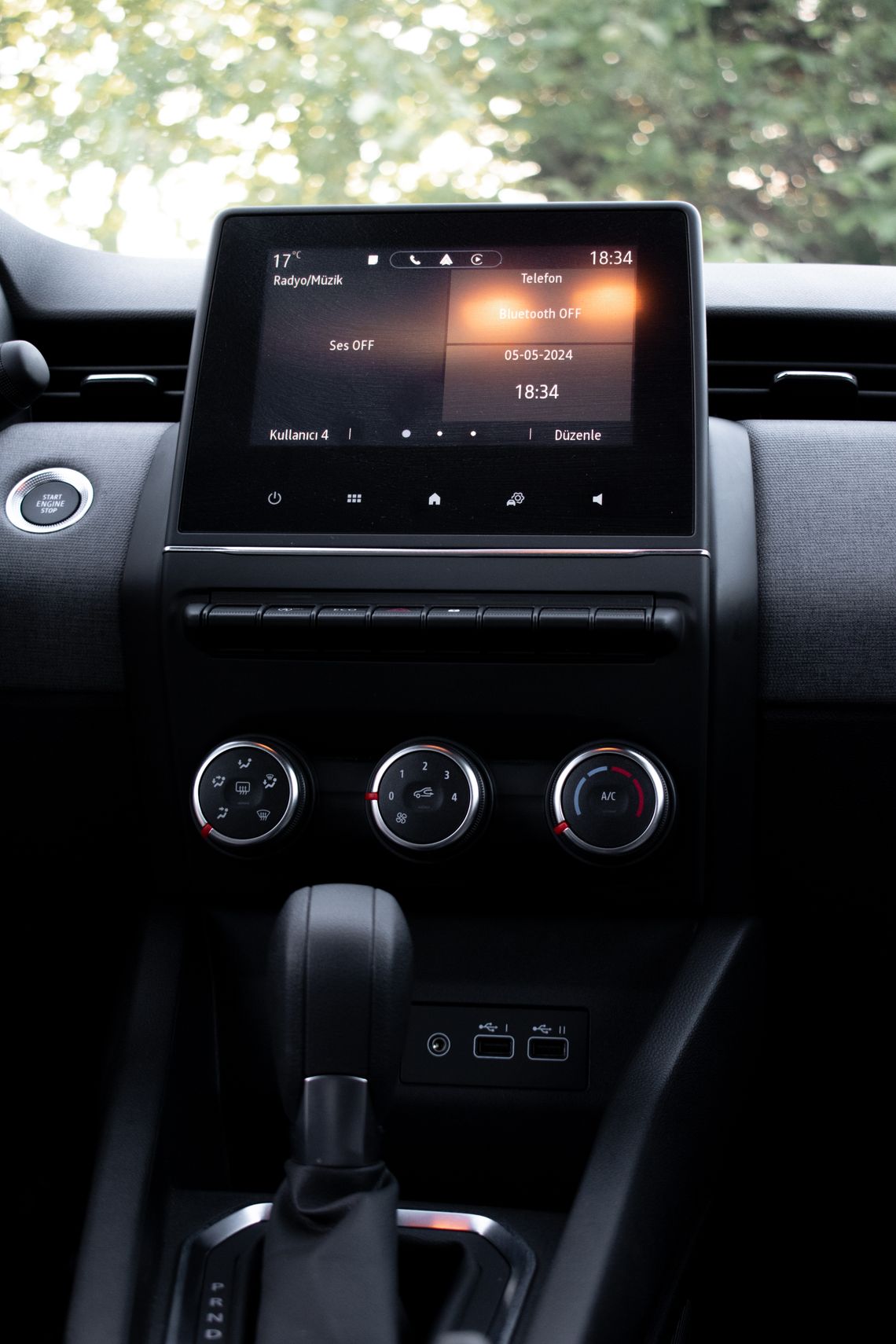
  • CarPlay or Android Auto not launching? Confirm the receiver supports the connection method, the phone meets requirements and the cable supports data transfer where wired connections are required.
  • No sound from speakers? Review audio source selection, volume, balance and fader settings before inspecting wiring.
  • Screen controls acting inconsistently? Restart the receiver using its documented method and check the product's software or firmware instructions.
Close-up photograph of a vehicle dashboard with touchscreen and climate controls
In-car multimediaConnections and controls
03 / EVERYDAY ELECTRICALS

Charging & power support.

With in-car charging and power accessories, safe operation begins with compatible ports, appropriate electrical loads and clear cable routing.

  • Charging slowly? Check the adapter's stated output, the connected device's charging standard and the rating of the cable. USB-C alone does not guarantee fast charging.
  • Wireless charging not starting? Verify that the phone supports the mount's wireless charging standard, sits correctly over the charging area and has no obstructive case or attachment.
  • Inverter shutting down? Consult the inverter instructions and vehicle socket limits. Stop using equipment that exceeds the specified power rating.
  • Mount shifting while driving? Recheck the attachment method, surface suitability, grip and installation position before use.
Electrical safety: Never exceed rated power limits. Disconnect accessories showing heat damage, loose connections or abnormal operation, and follow all manufacturer guidance.
04 / VEHICLE INFORMATION

Diagnostics & GPS support.

OBD2 scanners, GPS navigation, trackers and battery monitors deliver different information. Check the exact device capabilities and your vehicle's supported connections first.
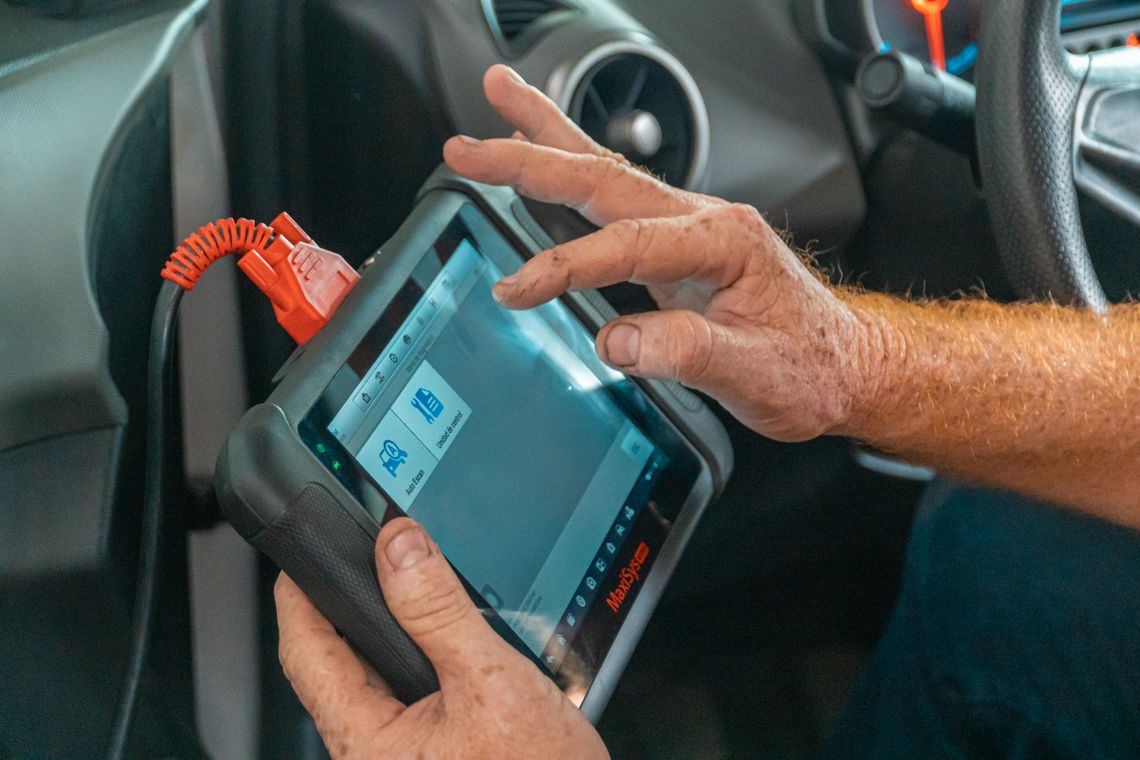
  • Scanner does not connect? Confirm vehicle compatibility, supported OBD2 protocols, ignition state and any app permissions or Bluetooth pairing required.
  • Fault codes unclear? Record the full code and follow vehicle-specific service guidance. A diagnostic code identifies a condition to investigate, not necessarily a single failed part.
  • GPS location inaccurate? Check sky visibility, mounting location, permissions, map updates and any required network access.
  • Tracker offline? Review charging or wired power, signal coverage, SIM or subscription requirements and app connection settings.
  • Battery readings unexpected? Confirm supported battery type, measured voltage range and proper installation before interpreting alerts.
Mechanic holding a vehicle diagnostic scanner inside a car
Vehicle diagnosticsInterpret results with care
BEFORE YOU REQUEST ASSISTANCE

Make support easier.

A little detail helps our support team understand the situation and guide you toward the relevant product instructions or next steps.
  1. Identify the product. Have the order number, product name and model details available.
  2. Describe the symptom. Include what happens, when it started and any error message or diagnostic code.
  3. Share useful context. Note your vehicle's year, make, model and trim when compatibility or installation is involved.
  4. Document the setup. Clear photos of the device, connections or on-screen message can help explain the issue.
  5. Record steps already tried. Note which recommended checks you completed and what changed.
Read common questions
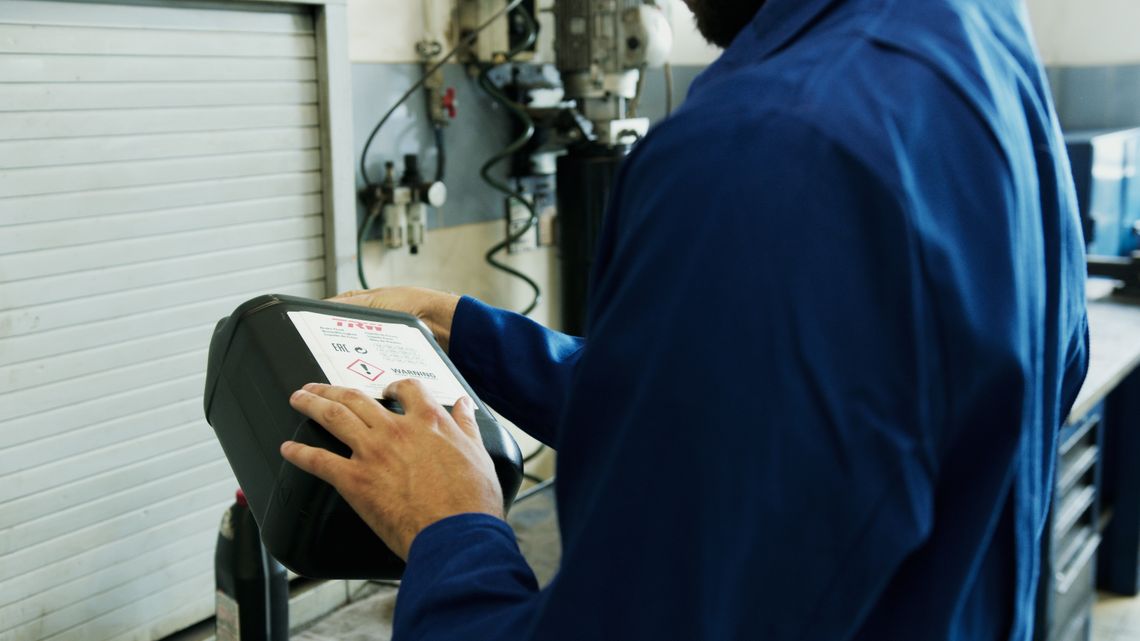
Mechanic using a diagnostic tool in a real automotive workshop

Technical assistanceClear details help

ANSWERS TO COMMON QUESTIONS

A few useful answers.

Select a question to see guidance on first steps, compatibility, installations and help after purchase.

Where do I find setup instructions?

Review the instructions included with your device and the details on its product listing. Setup, wiring and available features vary by model. If you need further assistance, provide the product name and your order number so the team can help identify the right guidance.

How can I check vehicle compatibility?

Compare the product's specified fitment and connection requirements with your vehicle's year, make, model, trim, existing equipment and available ports. If compatibility is unclear, avoid installation until you have confirmed the requirements.

Should I install equipment myself?

Some plug-in devices require only basic setup. Products involving permanent wiring, dash disassembly, airbags, battery connections or reverse-trigger systems may require a qualified professional. Always follow the manufacturer's instructions.

My device is not working. What first?

Check the device's power source, cables, compatible accessories, model-specific operating steps and any stated error indications. Do not attempt unsafe repairs or electrical modifications. Document the symptom for assistance if the issue remains.

Can an item be returned or exchanged?

Autonuvira offers free returns and exchanges within 30 days. If your product does not meet your needs, request assistance and provide your order information. See the store's Returns & Exchanges page for further guidance.

What about product warranties?

Warranty coverage and any manufacturer-specific conditions depend on the product. Review the information included with your item or its listing. If you are unsure what applies, have the product name and order details ready for the support team.

How long does shipping take?

Autonuvira offers free shipping on every product, with delivery in 3–5 calendar days. Keep your order information available if you have a delivery-related question.

When is the support team available?

Autonuvira provides customer support 24 hours a day, seven days a week. For product-specific assistance, including fault symptoms, compatibility or setup, include the relevant product and vehicle details.
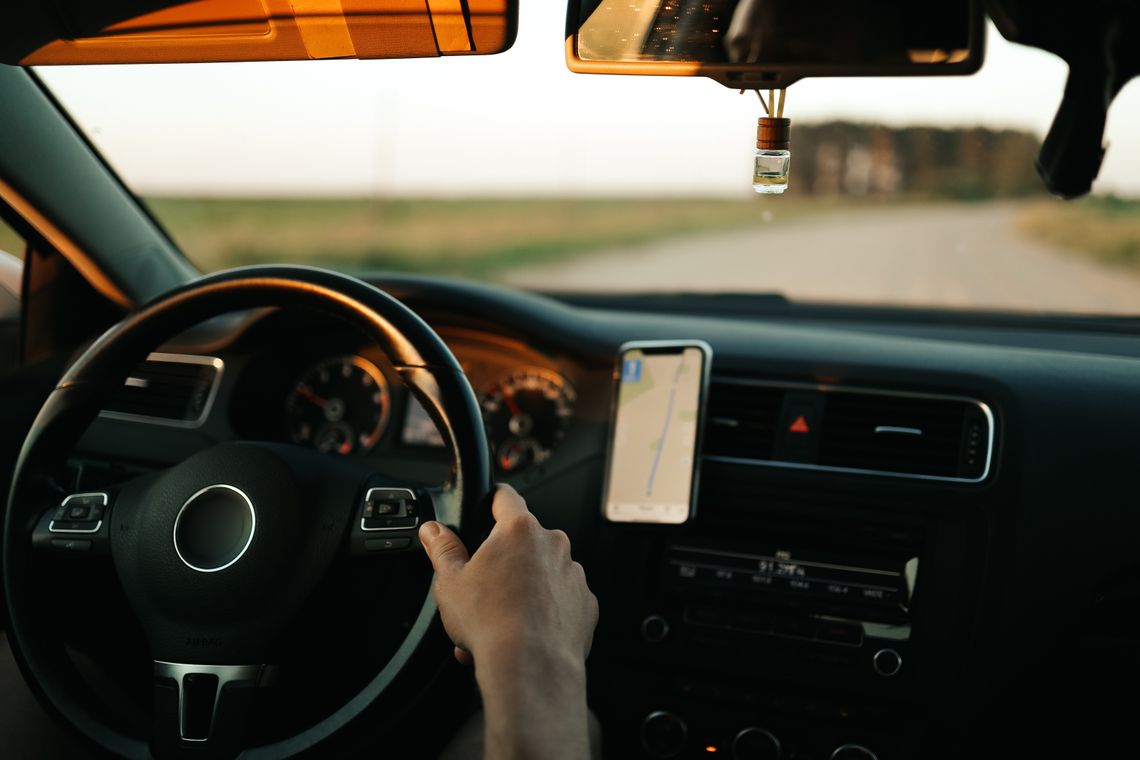
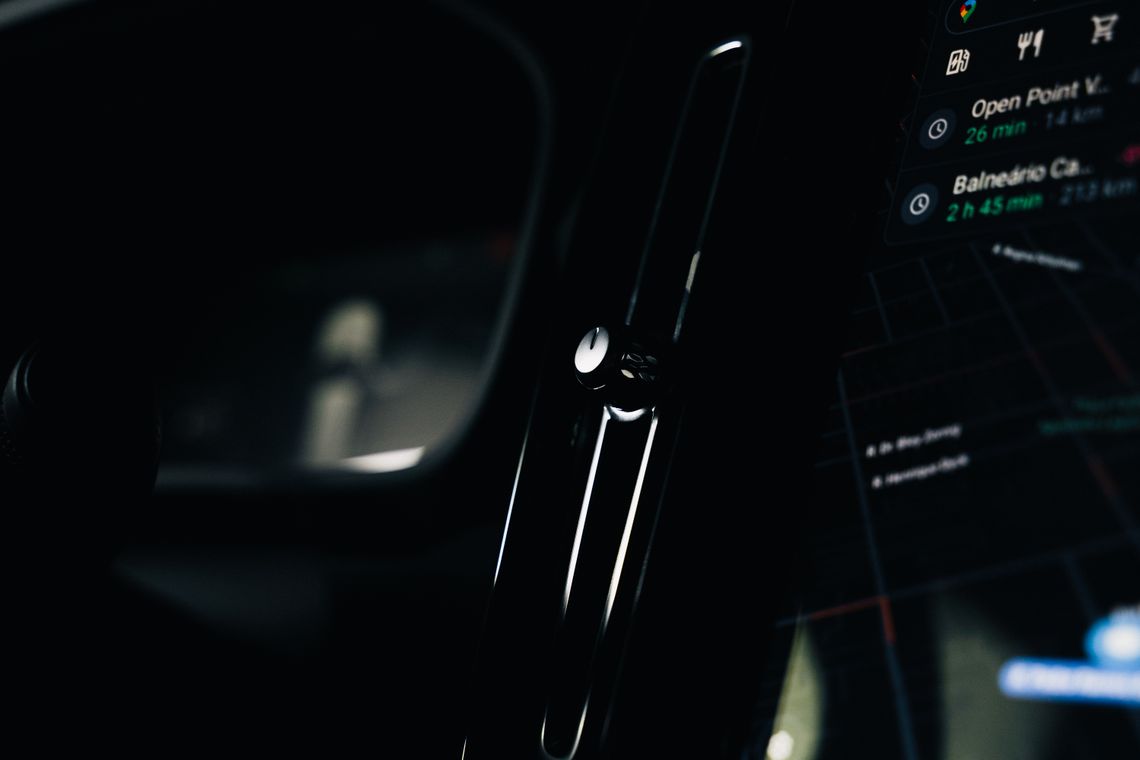
Photograph from inside a modern car with GPS navigation visible during driving

Everyday connected drivingSupport beyond setup

KEEP MOVING WITH CONFIDENCE

Built for the journey.

Good support is not only about solving a problem. It is about helping your electronics work naturally in the car you drive every day. Whether you are adjusting a camera angle, choosing an audio connection or understanding a diagnostic reading, start with reliable information and the correct setup.

Need to explore a different accessory? Browse the full range of automotive electronics and review individual product details before choosing.

Explore the collection
AUTONUVIRA / HERE TO HELP

Need personal assistance?

If the guidance above does not resolve your question, our customer support team is available 24/7. Include your order details and the product or installation issue so we can understand your request.

Autonuvira · Product SupportSupport@autonuvira.lat · +1 (415) 530-3427TikTok ↗   YouTube ↗